 MyCelium Wiki
Features
Set a key
Open Options > Controls > Key Binds and scroll down to Debug. Next to vanilla's own entries (the key you press together with F3) you find one more entry per shortcut, ending in (no F3). Click it, press any key or mouse button, and you are done. Pressing that key in game runs the shortcut, exactly as if you had pressed F3 and the shortcut's key together.
The new keys start unbound, so the mod changes nothing until you choose a key. A key can even be the same one vanilla uses: binding Show Chunk Boundaries (no F3) to G makes G alone show chunk borders, while F3 + G keeps working too.
Every F3 shortcut
| Shortcut | Vanilla |
|---|---|
| Show Chunk Boundaries | F3 + G |
| Show Hitboxes | F3 + B |
| Show Advanced Tooltips | F3 + H |
| Reload Chunks | F3 + A |
| Reload Resource Packs | F3 + T |
| Clear Chat | F3 + D |
| Copy Location | F3 + C |
| Copy Data (hold Shift for the full data) | F3 + I |
| Game Mode Switcher | F3 + F4 |
| Cycle Spectator | F3 + N |
| Debug Options | F3 + F6 |
| Toggle Lost Focus Pause | F3 + P |
| Start/Stop Profiling | F3 + L |
| FPS, network and profiling charts, lightmap texture, texture and version dumps | the matching F3 combos |
| Toggle Improved Transparency (Minecraft 26.3) | the matching F3 combo |
If you moved a vanilla shortcut to another key, the mod follows: it always runs whatever the shortcut does, whatever key vanilla has for it.
The game mode switcher
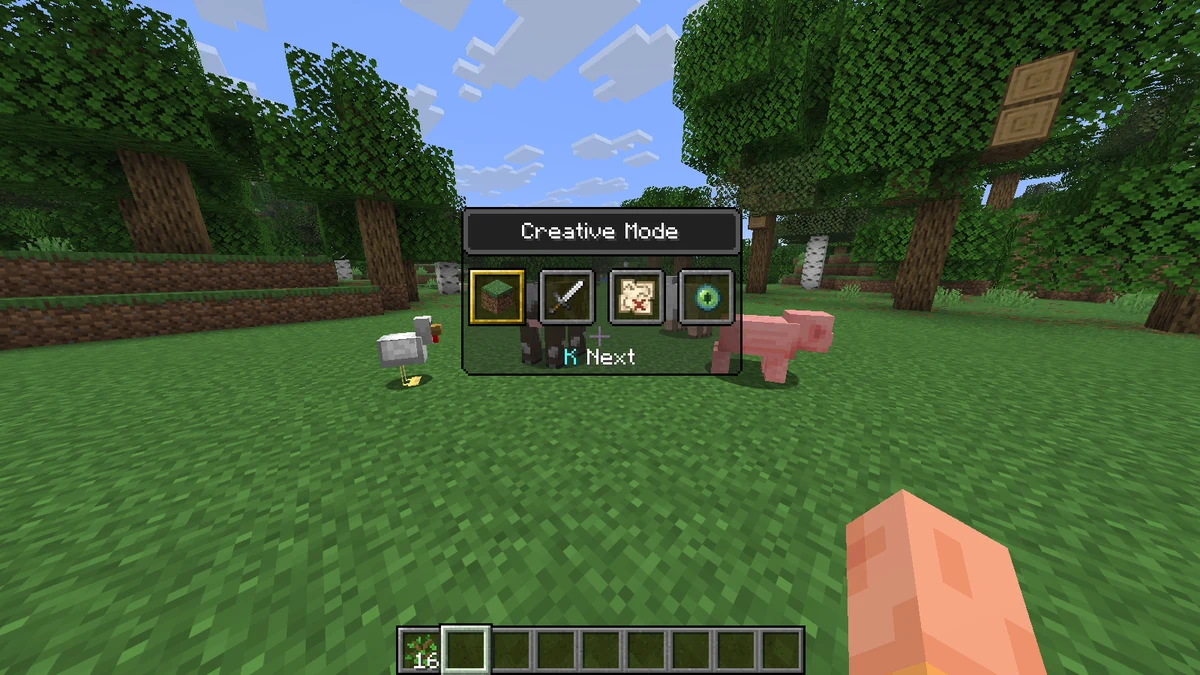
Vanilla picks the highlighted game mode when you let go of F3. With a single key there is no F3 to let go, so the switcher works a little differently: press your key to open it, press it again to move to the next mode, then press Enter, Space or click to switch. The hint at the bottom shows your key instead of F4.
Same as vanilla
Every key runs Minecraft's own F3 code, so you get the same [Debug] chat messages, and servers that turn on "reduced debug info" still block chunk borders and hitboxes, just like they block F3 + G. The keys only work in game, not while a menu or chat is open.