 MyCelium Wiki
Better Server List features
The screen
Clicking Multiplayer opens Better Server List instead of the vanilla list. On the left are your lists; on the right, the open list with a search box, the sort and filter buttons, and your servers. The buttons along the bottom are the vanilla ones: Join, Add, Direct (connect without saving), Edit and Delete, plus Refresh, Vanilla and Back. The title bar counts the servers in the open list and how many of them are online.
Each server row looks like vanilla's: the server icon, its name, the message of the day, the player count (hover it for the player list) and the ping bars. Hover the icon and click to join, or double-click the row. A server that cannot be reached shows a red cross instead of pinging forever like the vanilla list does.
Lists
Make as many lists as you like with + New list, for example Favorites, Modded, School events. Click a list to open it; the screen remembers which one was open. Right-click a list to rename it, move it up or down, copy its servers as text, paste servers into it, or delete it. Double-clicking the open list renames it too.
The same server can be in several lists. Each copy has its own category, pin and note.
Categories and pins
Inside a list, categories group servers into sections with a colored marker and a count. Click a section header to fold it away; right-click it to rename it, pick another color, move it up or down, add a server straight into it, or delete it. Deleting a category never deletes servers: they move to Uncategorized.
Pin a server with the star that appears on hover (or from its menu) and it moves to the Pinned section at the top of the list. It keeps its category, so unpinning puts it back where it was.
A list with no categories and no pins has no section headers at all and looks just like the vanilla list.
Right-click menus
Right-click a server for Join, Edit, Pin to top, Move to category, Move to list, Copy to list, a note, Copy address and Delete. Menus that lead somewhere open in place with a Back row, and the current category is ticked.
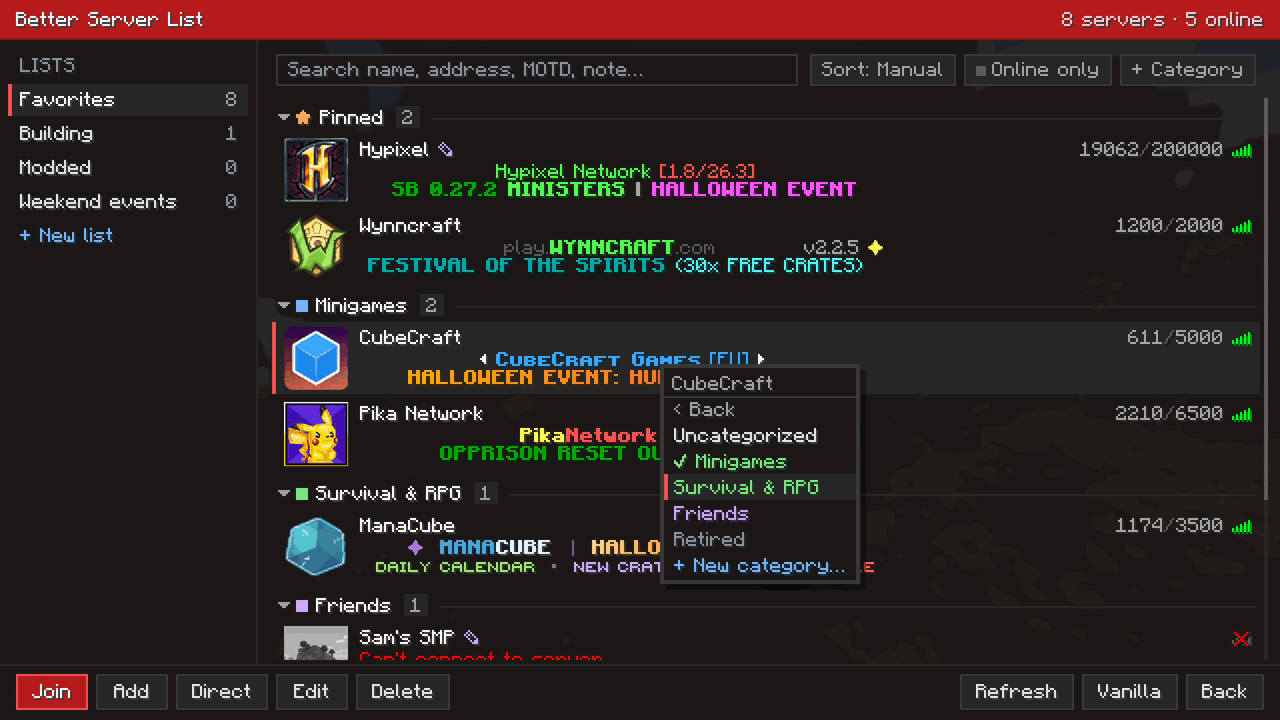
Right-click empty space in the list to add a server, create a category, or paste servers.
Search, sort and filter
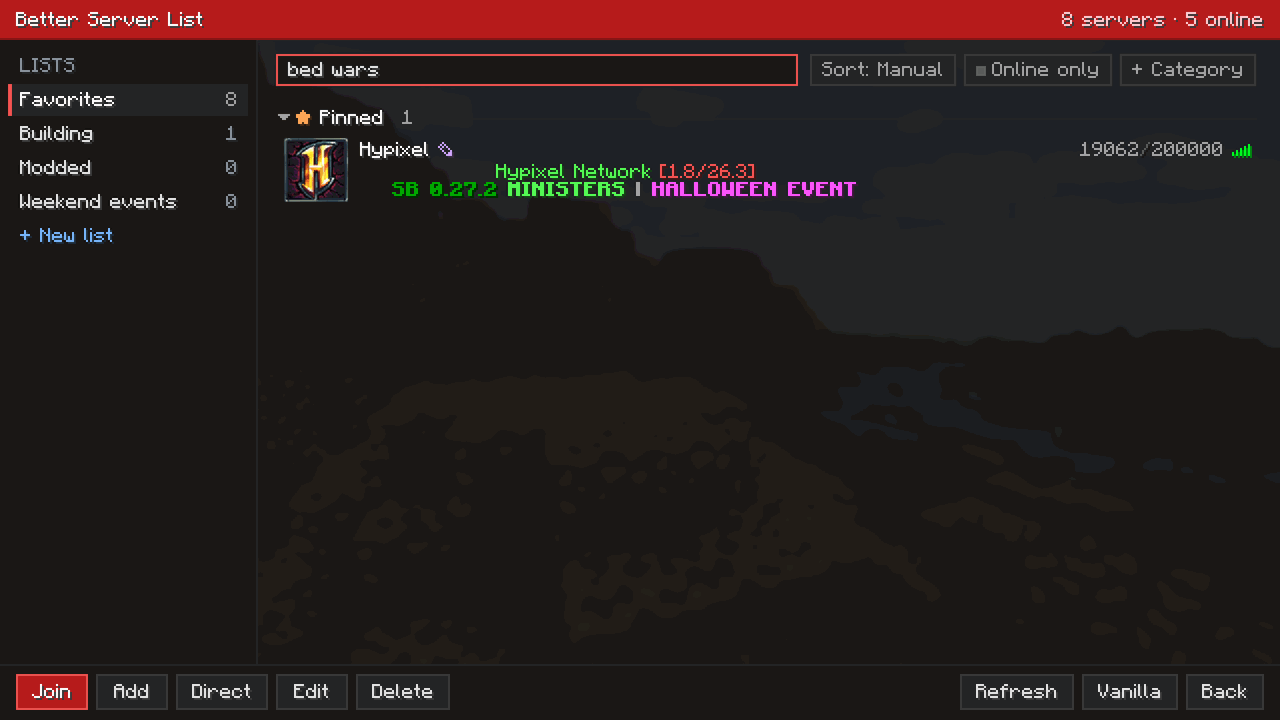
Just start typing anywhere on the screen (or press Ctrl+F). The search matches server names, addresses, MOTDs, notes and category names, so bed wars finds the server whose note says "Bed Wars with the crew on Fridays". While you search, folded sections open and empty ones hide, so every match is visible. Enter joins the first match; Esc clears the search.
- Sort cycles through Manual (your own order), Name, Players, Ping and Last played. Sorting happens inside each section, so categories stay together.
- Online only hides servers whose ping failed. Click it again to show everything.
Drag and drop
Grab a server and drop it:
- Between two servers to put it there. It joins that section, so dropping a server among the pinned ones pins it.
- On a section header to move it to the end of that category (or pin or unpin it).
- On a list in the sidebar to move it to that list. Hold Ctrl while dropping to copy it instead.
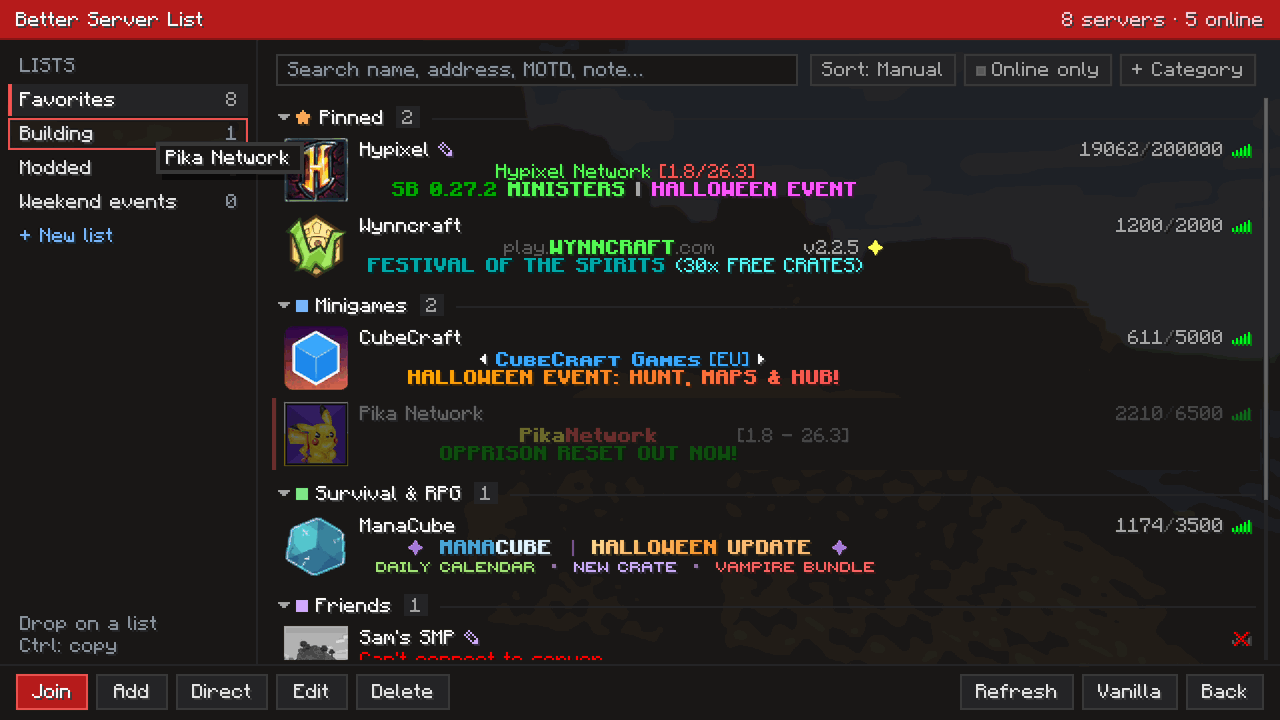
Reordering works with the Manual sort. With another sort (or while searching) a drop still moves the server into the right section, but its exact position follows the sort. The list scrolls when you drag near its top or bottom edge. Esc cancels a drag.
Notes and play history
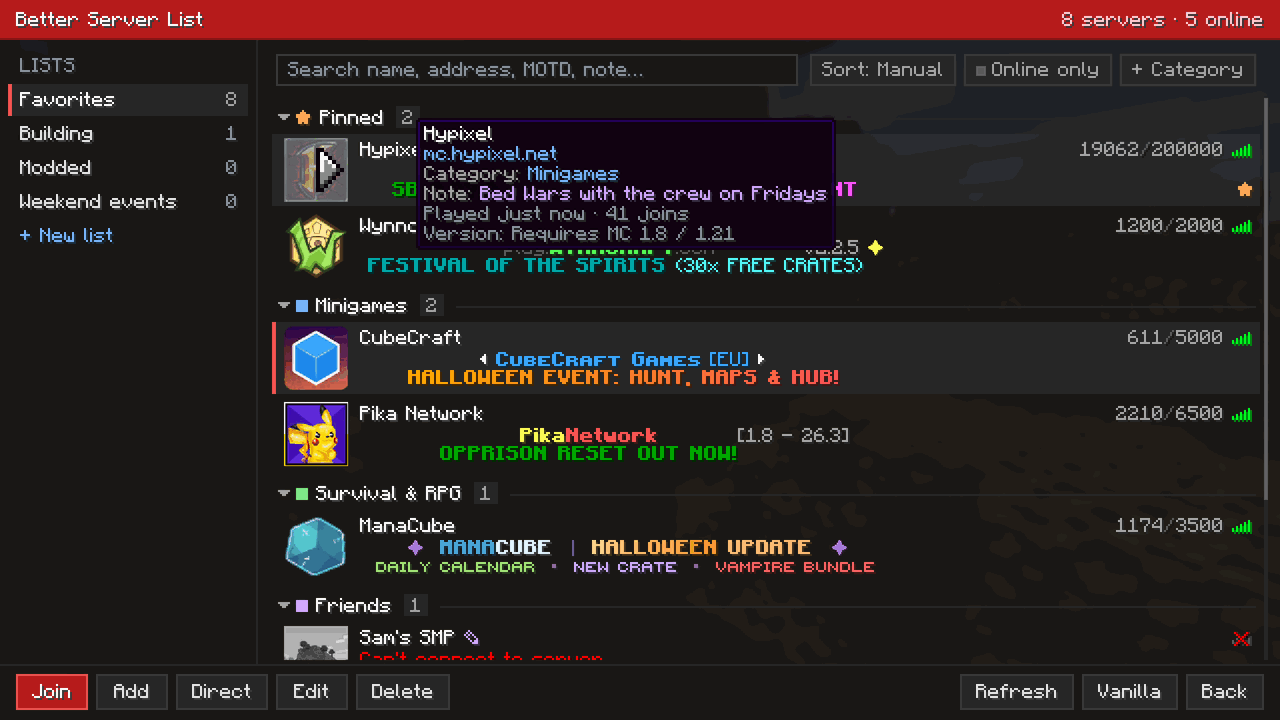
Give any server a note from its menu (Add note…), such as a whitelist contact, a world seed or who you play with. A small pencil next to the name marks servers with a note. Hover a server's name to see its address, category, note, when you last joined it and how many times.
LAN worlds
Worlds opened to LAN on your network appear in a LAN worlds section at the bottom, like in vanilla. Click its header to fold it.
Copy and paste lists
Right-click a list and choose Copy servers as text to put every server on the clipboard, one per line as Name, a tab, and the address. Paste that (or any text with server addresses) into another list with Paste servers. Pasting also understands Name address lines and bare addresses, and skips servers the list already has, so a list a friend posts in chat imports in one click.
Keyboard
| Key | What it does |
|---|---|
| Typing, Ctrl+F | Search |
| ↑ / ↓ | Select the previous or next server |
| Shift+↑ / ↓ | Move the selected server up or down in its section |
| Enter | Join the selected server (from the search box: the first match) |
| Delete | Delete the selected server |
| F2 | Edit the selected server |
| Ctrl+C | Copy the selected server's address |
| F5 | Ping every server again |
| Esc | Close a menu, clear the search, or go back |
Your servers are safe
- First start: every server from the vanilla list is imported into a list called Servers, in the same order.
- Always in sync: every change is also written to the vanilla
servers.dat, one entry per address. The vanilla screen, other launchers and the game without this mod see all your servers. - New servers from elsewhere (added with the vanilla screen, or shipped in a modpack's
servers.dat) are added to your first list the next time you open the screen. - What the game remembers per server, such as the icon, your resource pack choice and an accepted code of conduct, keeps working, because it still lives in
servers.dat. - The Vanilla button opens the original screen. It stays until you go back to the title screen, and a Better list button in its corner returns you.
Performance
Servers are pinged once when their list opens, on the same five background threads the vanilla list uses, and each address is pinged once even if it sits in several lists. Server icons are kept for the session, so reopening the screen shows them at once. Nothing runs while the screen is closed.